
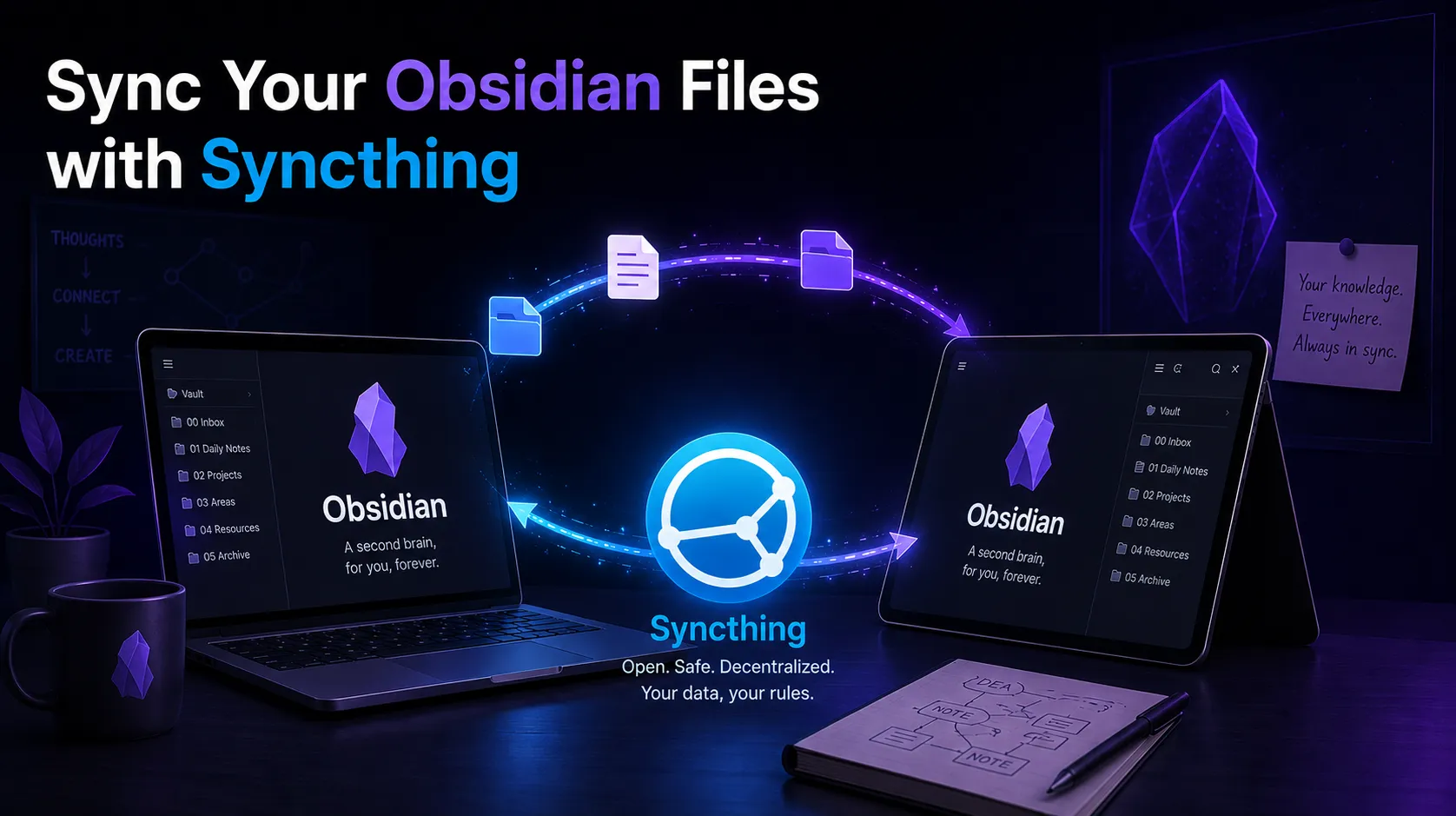
Painless Obsidian Sync: Why I Chose Syncthing and How to Install It (Part 1)
In the previous article, we discussed in detail why Obsidian has become my main tool for organizing knowledge (Second Brain) and how the right structure helps keep everything under control. But as soon as your knowledge base starts to grow, the most important question arises: how do you sync your notes across all your devices?
You could use iCloud or Google Drive, but sooner or later you will run into file duplication, version conflicts, or sync freezes on mobile. The official Obsidian Sync is a great solution, but it is paid.
My choice is Syncthing. It is a powerful, free, and completely private tool that perfectly fits into my ecosystem of macOS, Windows 11, a smartphone, and my own VPS server.
What is Syncthing and how does it work?
Syncthing is an open-source program for continuous decentralized file synchronization.
Unlike traditional cloud storage (Dropbox, GDrive), where your files reside on someone else's server, Syncthing uses a Peer-to-Peer (P2P) architecture. This means your devices exchange files directly with each other, bypassing central servers.
Main advantages of the technology:
Absolute privacy. Files are transferred only between your devices via an encrypted channel (TLS). No one else has access to them.
Block-level synchronization. If you change a single word in a large file, Syncthing transfers only that modified chunk (block), not the entire file. For thousands of small
.mdObsidian files, this ensures lightning-fast speed.Local Area Network (LAN) operation. If your laptop and computer are on the same Wi-Fi network, files will be transferred at the speed of your router, even without internet access.
Why do we need a VPS server here?
Since the architecture is decentralized, devices can only sync when both are turned on and online. To avoid keeping my home PC constantly turned on, I added my Ubuntu VPS server to this setup. It acts as an "always-on" node.
The workflow is simple: I write a note on my MacBook in a coffee shop, and it instantly flies to the VPS. When I return home and turn on my Windows PC, it fetches this note from the VPS. Magic!
Installation: Arming Our Devices
Syncthing has clients for every platform. Since my workflow is divided across different OSs, here is how I set up each device.
1. macOS (Apple Silicon M1)
For Mac users, the easiest way to run it in the background is by using the Homebrew package manager (we love the terminal, right?).
Bash
brew install syncthing
brew services start syncthing
After that, Syncthing runs as a background service and will automatically start when you turn on your Mac. The control interface is available in the browser at http://localhost:8384. (If you prefer a graphical interface, you can download the Syncthing-macOS app from GitHub).
2. Windows
For Windows, I chose the simplest and most obvious route — downloading it from the official website.
Just go to the official page at https://syncthing.net/downloads/, find the Windows section, and download the standard installer. The installation takes just a few clicks, like any other regular program. Everything is as simple and straightforward as possible: after installation, the program runs in the background, and the entire setup process is handled through a convenient web interface in the browser (which defaults to http://localhost:8384).
(You can also find SyncTrayzor on this same page — it is the officially recommended wrapper that adds a handy icon to the system tray near the clock, so the terminal window doesn't bother you).
3. Ubuntu VPS (The Server Part — Our "Always Online" Core)
As I mentioned earlier, P2P synchronization requires the devices to be online at the same time. To avoid relying on a powered-on home PC or an open laptop, I use my Ubuntu VPS as a permanent intermediary node (hub).
I decided not to overcomplicate the system with Docker containers and installed Syncthing directly into the operating system as a classic Linux service. This provides maximum performance and transparency of settings.
Step 1. Installing from the official repository
To always get the latest updates along with a standard apt upgrade, we will add the developers' official repository. Run the following in the server terminal:
Bash
# 1. Download the PGP key so the system trusts this repository
sudo curl -s -o /usr/share/keyrings/syncthing-archive-keyring.gpg https://syncthing.net/release-key.txt

# 2. Add the repository itself to the Ubuntu sources list
echo "deb [signed-by=/usr/share/keyrings/syncthing-archive-keyring.gpg] https://apt.syncthing.net/ syncthing stable" | sudo tee /etc/apt/sources.list.d/syncthing.list

# 3. Update the package list and install Syncthing
sudo apt update && sudo apt install syncthing
Step 2. The magic of systemd (Running in the background)
If you just type syncthing in the console after installation, the program will start, but as soon as you close the terminal (disconnect from SSH), it will shut down.
We need Syncthing to run as a daemon (background service) and start automatically after every server reboot. Linux uses the systemd service manager for this. The Syncthing developers have already carefully prepared the configuration for us; we just need to activate it.
An important security rule: Never run Syncthing as the root user! This creates a security hole. We will run the service under your regular user.
Run the following commands (replace your_username with your actual username on the server):
Bash
# Add the service to autostart (it will boot with the system)
sudo systemctl enable syncthing@your_username.service

# Start the service right now
sudo systemctl start syncthing@your_username.service

# Check the status (you should see a green "active (running)" label)
sudo systemctl status syncthing@your_username.service
4. Smartphone
Android: Everything is perfect here. The official Syncthing app from Google Play works flawlessly, supports background synchronization, and allows you to choose any folder in the phone's memory.
iOS (iPhone/iPad): There is no official client due to the closed nature of Apple's file system, but there is a great alternative — Mobius Sync. It works perfectly with Obsidian folders on iOS, although it does have limitations on background activity (Apple doesn't allow third-party apps to run in the background for long).
Step 3. Setting Up Secure Access to the Web Panel (Nginx + Domain)
By default, the Syncthing web interface is only accessible locally (at 127.0.0.1:8384) for security reasons. Many advise simply opening this port to the outside world, but we are not going to do that — it is a serious security hole.
We will take the professional route: set up a Reverse Proxy and protect our panel with modern encryption.
Why do you need a domain? To implement the secure HTTPS protocol and obtain an SSL certificate. This way, your access to the Syncthing panel (and all passwords) will be securely encrypted. You can use any spare domain you already own or register a free one (for example, in the .pp.ua zone).
Control Panel (my experience with HestiaCP) On my VPS, I use the Hestia server control panel. It is a very convenient and powerful all-in-one tool that already has everything you need installed. Visually configuring domains, DNS, mail, and the firewall with it is a pleasure.
A quick digression: During updates, Hestia has a habit of overwriting manually written domain configs. This can break the automatic renewal of Let's Encrypt SSL certificates. To do everything correctly, you need to use custom Hestia templates. I struggled a lot with this issue at the time, so I will write a detailed guide on creating Hestia templates in a separate article.
Nginx Configuration In short, the idea is to add a domain to your server and configure Nginx to intercept external traffic and redirect it to the local Syncthing port.
Here is the main part of the Nginx configuration file (the location block) that allows routing requests from your domain to the Syncthing panel:
Nginx
# 3. Main proxy to Syncthing
location / {
    # Redirect traffic to the local Syncthing port
    proxy_pass http://127.0.0.1:8384;

    location ~* ^.+\.(css|htm|html|js|mjs|json|xml|apng|avif|bmp|cur|gif|ico|jfif|jpg|jpeg|pjp|pjpeg|png|svg|tif|tiff|webp|aac|caf|flac|m4a|midi|mp3|ogg|opus|wav|3gp|av1|avi|m4v|mkv|mov|mpg|mpeg|mp4|mp4v|webm|otf|ttf|woff|woff2|doc|docx|odf|odp|ods|odt|pdf|ppt|pptx|rtf|txt|xls|xlsx|7z|bz2|gz|rar|tar|tgz|zip|apk|appx|bin|dmg|exe|img|iso|jar|msi|webmanifest)$ {
        try_files  $uri @fallback;
        root       %home%/%user%/web/%domain%/public_html;
        expires    max;
    }
}

location @fallback {
    proxy_pass http://127.0.0.1:8384;
}
💡 Note: In the config, we specify
http://127.0.0.1:8384(or your VPS IP) because Nginx and Syncthing are located on the same server. Nginx acts as a reliable guard that intercepts external encrypted HTTPS traffic and forwards it inside the system.
Once the domain is set up and the configs are applied, you will be able to open the panel in your browser at your domain address (for example, https://syncthing.mydomain.com) and immediately set a strong administrator password.
Step 4. First Launch and Basic Security (Setting a Password)
After we have successfully configured the domain and Nginx, it's time to log into our Syncthing control panel on the server for the first time.
Open your browser and enter your domain address (for example, [https://syncthing.mydomain.com](https://syncthing.mydomain.com)). Since this is the first launch, the panel will open immediately without asking for a password. But don't be alarmed: you will immediately see a large red warning stating that your interface is unsecured. This is the most crucial stage of the server setup!
How to set the administrator password:
In the upper right corner, click the Actions button.
Select Settings.
Go to the GUI tab.
Enter a username (for example,
adminor your name) and come up with a strong password.(Optional) Right there, on the GUI tab, you can change the theme to Dark — your eyes will thank you if, like me, you are used to dark themes in Obsidian and code editors.
Click Save.
Immediately after saving, the panel will reload and ask you to enter the newly created login and password. Now your Syncthing server is securely protected: traffic is encrypted via HTTPS thanks to the domain, and access is locked behind a password.
Getting to Know the Interface: Where Does the Syncthing Magic Lie?
Now that all 4 devices (MacBook, Windows, smartphone, and VPS) are set up and ready to go, let's figure out exactly how they will find each other.
Syncthing has no centralized accounts, registrations, or email addresses. The entire system is built on cryptography. Upon the first launch, the program generates a unique cryptographic key on each of your devices — the Device ID. It is a long string of letters and numbers that looks something like this: UKV6H...-....-....-.....
For two devices to start trusting each other and be able to exchange Obsidian notes, they need to "get to know" each other — meaning you have to copy the Device ID from one device and add it to the other.
How to find your Device ID: On any of your devices, open the Syncthing panel, click Actions in the top right corner -> Show ID. A window will appear with your long identifier and a convenient QR code (which is perfect for quickly connecting a smartphone).
In the next part, we will start the most interesting stuff: building our network topology. I will show you how to properly link your MacBook, Windows, and smartphone to our VPS server, how to create the first shared folder for the Obsidian vault, and how to set up the lifesaver .stignore file.
Painless Obsidian Sync (Part 2): Topology, Folders, and the Lifesaver .stignore
In the previous part, we installed Syncthing on all our devices and securely protected the control panel on the VPS server. Now it's time to make this orchestration work as a single mechanism.
Network Topology: Why the Server is the Center of the Universe
Since Syncthing works on a P2P principle, you can connect every device to every other device (MacBook to Windows, Windows to phone, etc.). This is called a "Mesh" topology.
But for an Obsidian vault, this is a bad option. Why? Laptops go to sleep, computers turn off, and phones strictly save battery power in the background. If you write a note on your Mac and close the lid, your Windows PC won't get it until the Mac wakes up again.
That's why we are going to build a Star Topology. Our always-on VPS server will be the center (hub), and all other devices (MacBook, Windows, smartphone) will connect only to it.
How to link the devices:
Go to the Syncthing panel on your MacBook. Click "Add Remote Device".
Enter the Device ID of your VPS server (we covered how to find it at the end of the first part) and name it, for example,
Ubuntu-VPS.Now open the web panel of your VPS server. In a few seconds, a yellow notification will appear there: "Device MacBook wants to connect". Click "Add".
Repeat this procedure for your Windows PC and smartphone: add the server ID from each of them, and confirm the requests on the server.
💡 Result: Now the server knows about all your devices, and each device only knows about the server. Perfect.
Creating the First Shared Folder for Obsidian
Let's assume your actual Obsidian knowledge base is currently located on your MacBook. We will start with it.
In the Syncthing panel on your Mac, click "Add Folder".
"General" tab:
Folder Label:
Obsidian Vault(or any other name).Folder Path: specify the actual path to your vault (for example,
/Users/username/Documents/Obsidian).
"Sharing" tab:
Check the box next to our
Ubuntu-VPS.
Click "Save".
As soon as you do this, a notification will pop up in the VPS server's web panel: "MacBook wants to share folder Obsidian Vault". Click "Add", specify the path on the server (for example, /home/username/obsidian_sync), and save. The server will start downloading your files.
Once the files are on the server, go to the settings for this folder on the server, navigate to the "Sharing" tab, and share it with your Windows PC and smartphone. They will receive a request, you will specify where to save the vault on the PC and the phone, and the synchronization will start!
The Magic of .stignore: Avoiding Conflicts and Clutter
Now for the most important step; without it, your Obsidian synchronization will sooner or later turn into a nightmare.
The thing is, different operating systems create hidden system files. Macs scatter .DS_Store files everywhere, while Windows creates desktop.ini and Thumbs.db. If Syncthing starts shuffling these files between devices, you will have eternal chaos.
Moreover, Obsidian itself has a specific workspace (or workspace-mobile) file within the .obsidian folder. It stores information about which tabs you currently have open, the width of the panels, and so on. It updates every second while you work. If it syncs while you are working on two devices simultaneously, file conflicts are inevitable.
To avoid this, Syncthing has Ignore Patterns.
Open the settings for the Obsidian Vault folder (on any device), go to the "Ignore Patterns" tab, and paste this lifesaver list:
Plaintext
// Ignore macOS system clutter
.DS_Store
.AppleDouble
.LSOverride
._*
.Trash-*

// Ignore Windows system clutter
desktop.ini
Thumbs.db
$RECYCLE.BIN/

// CRITICAL FOR OBSIDIAN:
// Ignore workspaces (keep only notes and plugin settings)
.obsidian/workspace
.obsidian/workspace.json
.obsidian/workspace-mobile
.obsidian/workspace-mobile.json

// Ignore Syncthing's own conflict folder (just in case)
.stversions/
Click "Save".
🔥 Important nuance: The
.stignorefile is not synced automatically between devices! You need to copy this list and manually paste it into the "Ignore Patterns" tab for this folder on every one of your devices (on Mac, on Windows, on the server, and on your phone).
What have we achieved?
Now you have your own completely free, encrypted cloud. You can write code in Neovim or create a note in Obsidian on your Mac, and within 2 seconds, it will be on your Windows PC and your phone. The server will reliably keep a copy even if all your gadgets run out of battery.
Bonus: Protection Against Accidental Deletion (File Versioning)
There is one golden rule that beginners often forget: synchronization is not a backup.
Imagine a situation: you accidentally deleted an important folder of notes on your MacBook (or an Obsidian plugin malfunctioned and overwrote your text). Syncthing will work perfectly and lightning-fast — it will instantly and obediently delete these files on your Windows PC, phone, and server. Everything, data lost.
To prevent such a catastrophe, Syncthing has a built-in killer feature — File Versioning.
It is best to enable this feature specifically on our VPS server, since it is the center of our "star" topology, it is always online, and it has enough disk space to store change history.
How to set up deletion protection:
Open the Syncthing panel on your VPS server.
Click "Edit" on your shared
Obsidian Vaultfolder.Go to the "File Versioning" tab.
In the drop-down list, select "Trash Can File Versioning".
In the "Clean out after" field, specify how many days to keep deleted files. I recommend setting 30 days.
Click "Save".
(Alternatively, you can choose "Simple File Versioning" — then the server will save a specified number of previous versions of each file whenever it is changed, for example, the last 5 versions).
How it works now: If you accidentally delete or corrupt a note on your laptop or phone, the server will obediently remove it from the main working folder but will carefully hide a copy in the hidden .stversions directory on its disk. If disaster strikes, you will always be able to access the server (via SSH or FTP) and restore the lost file from the archive.
Now your system is not only free, fast, and private, but also completely bulletproof!
Коментарі (0)
Leave a comment